
Product classification
⭕1. Product classification teaching video
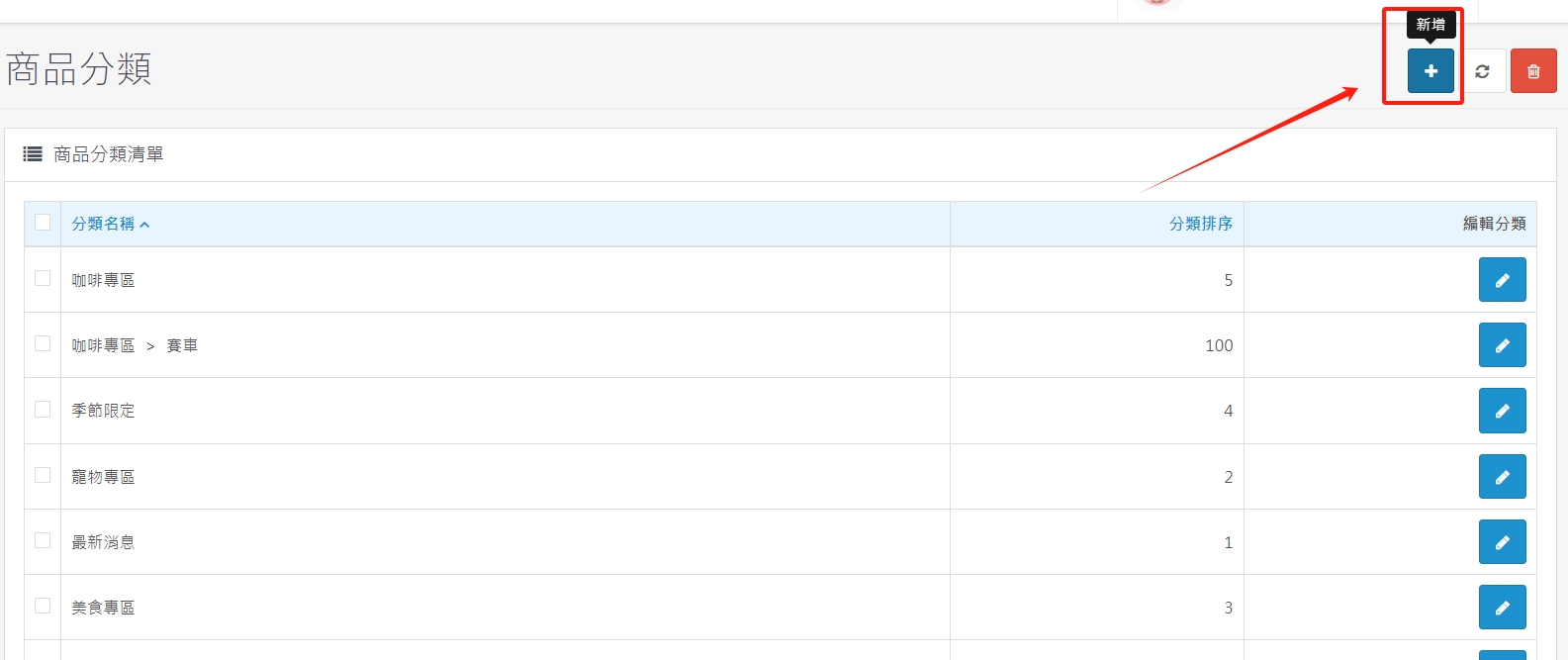
⭕2, Click Add to jump to the new product category page
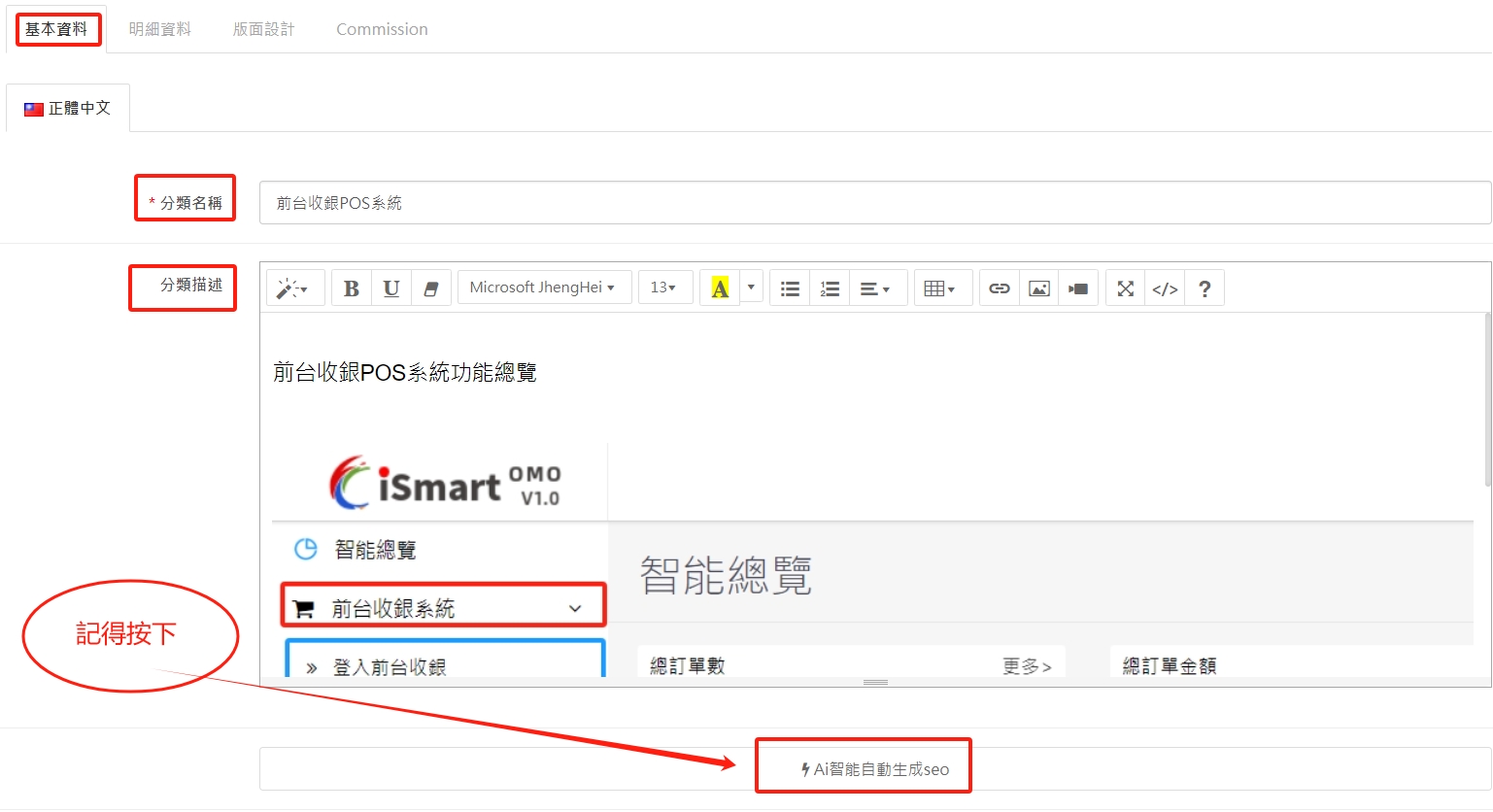
⭕3. Basic information tab
(3.1). Edit the category name and category description. After editing, remember to press Auto SEO to complete the H1~3, META, and keyword tag help search
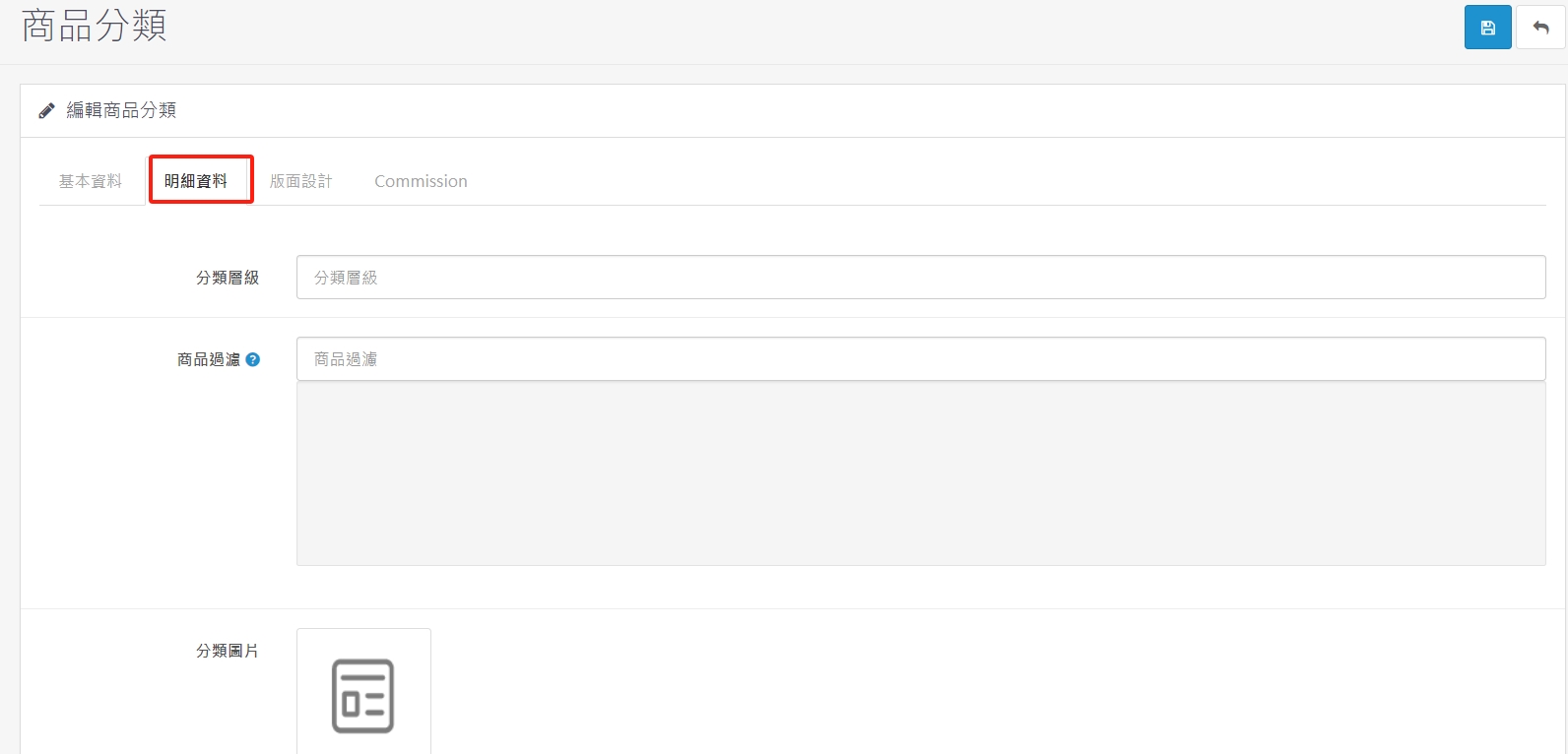
⭕4. Detailed information - product classification editing
※(4.1), main category and sub-category creation settings, set in the details tab
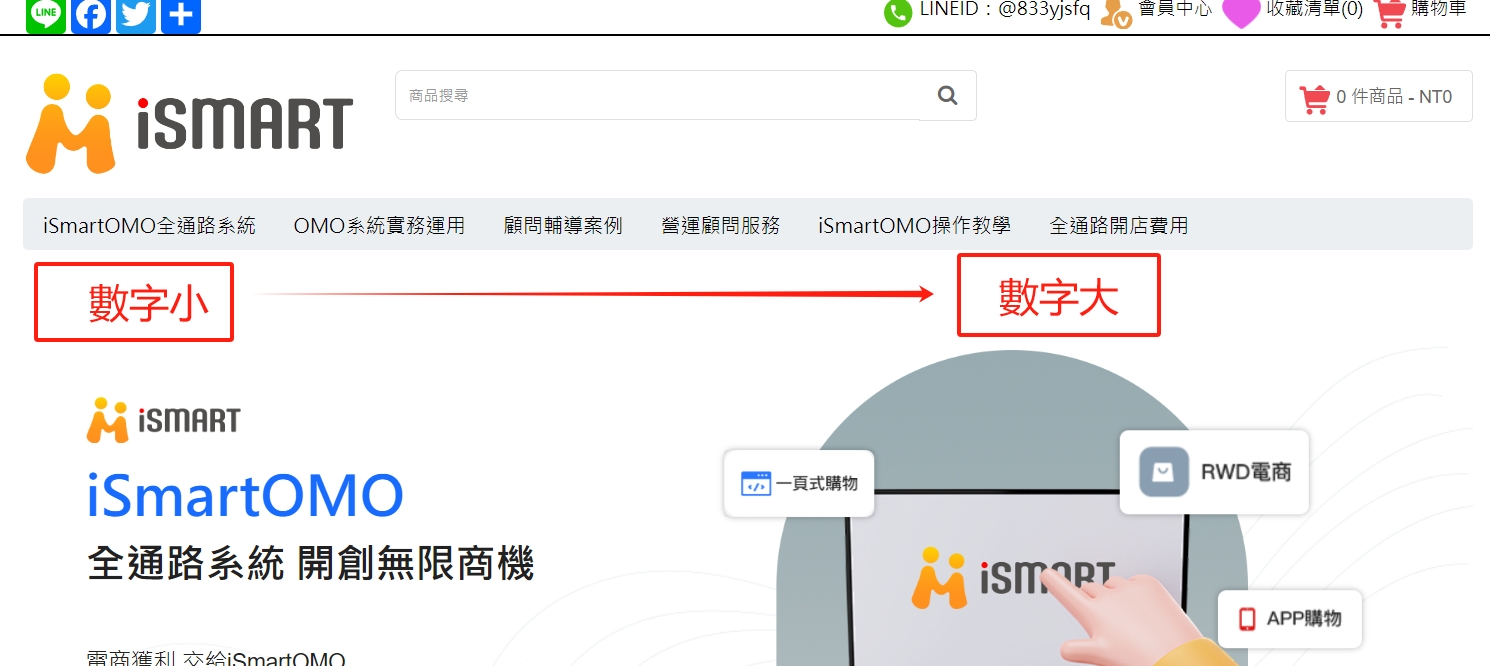
※(4.2). If you need to create a "Main Category" (navigation bar), check "Navigation Bar Display" and enter "Category Sorting" with the smallest on the left and the largest on the right, and the category level does not need to be filled in or selected.
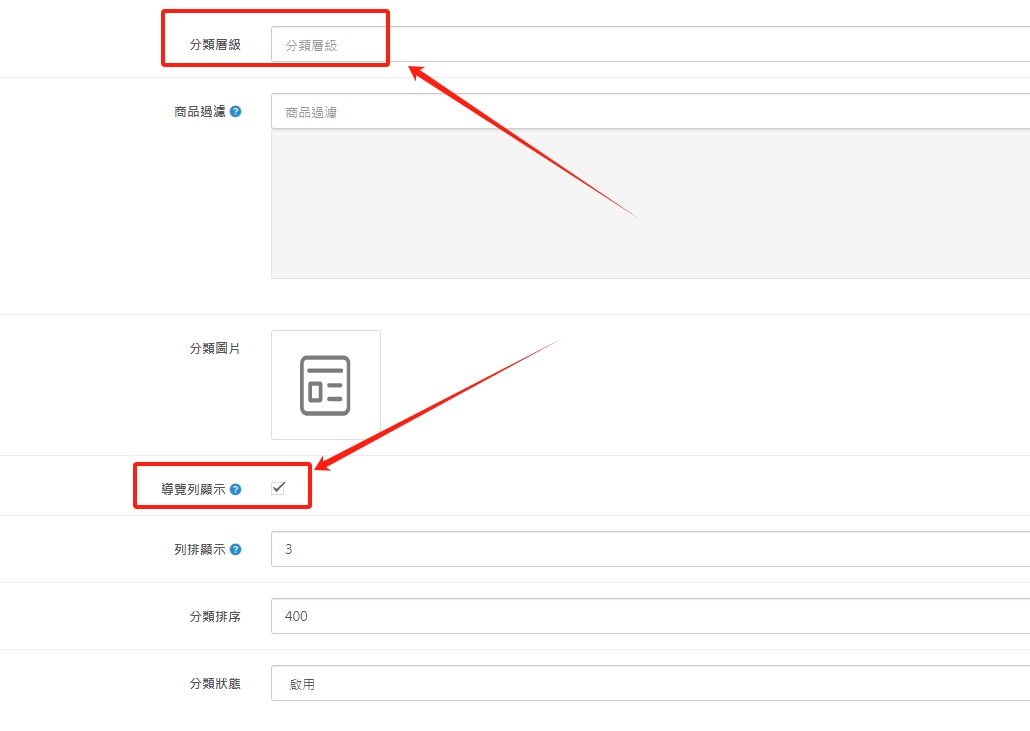
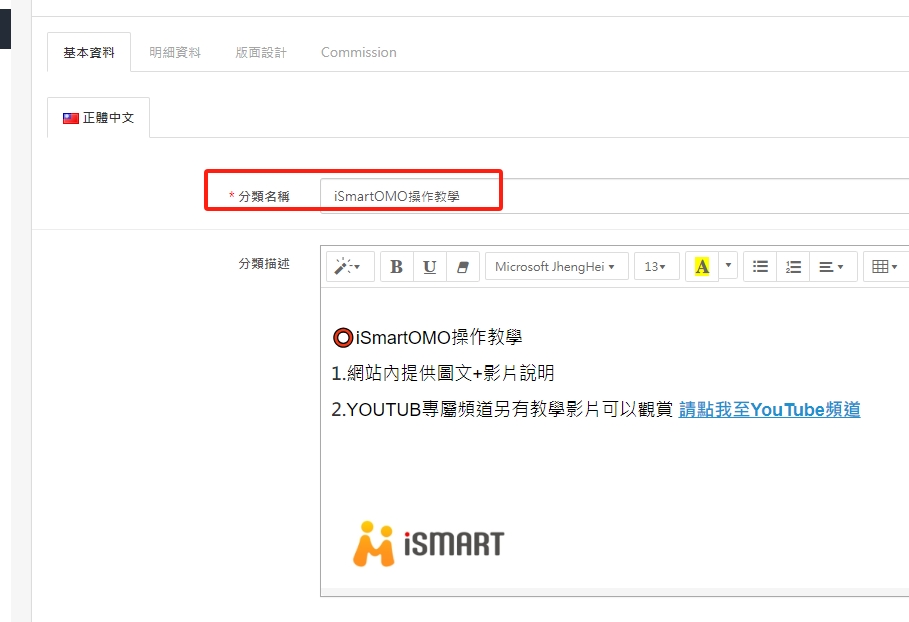
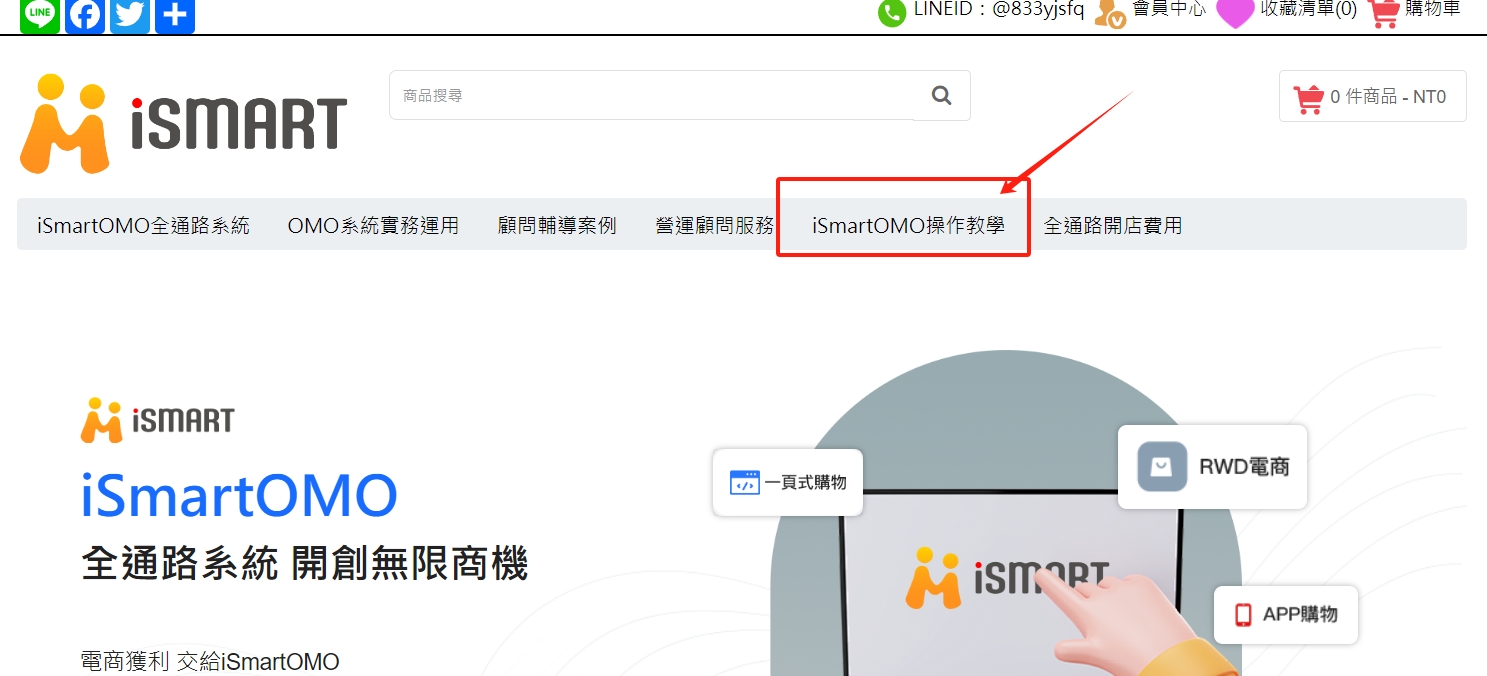
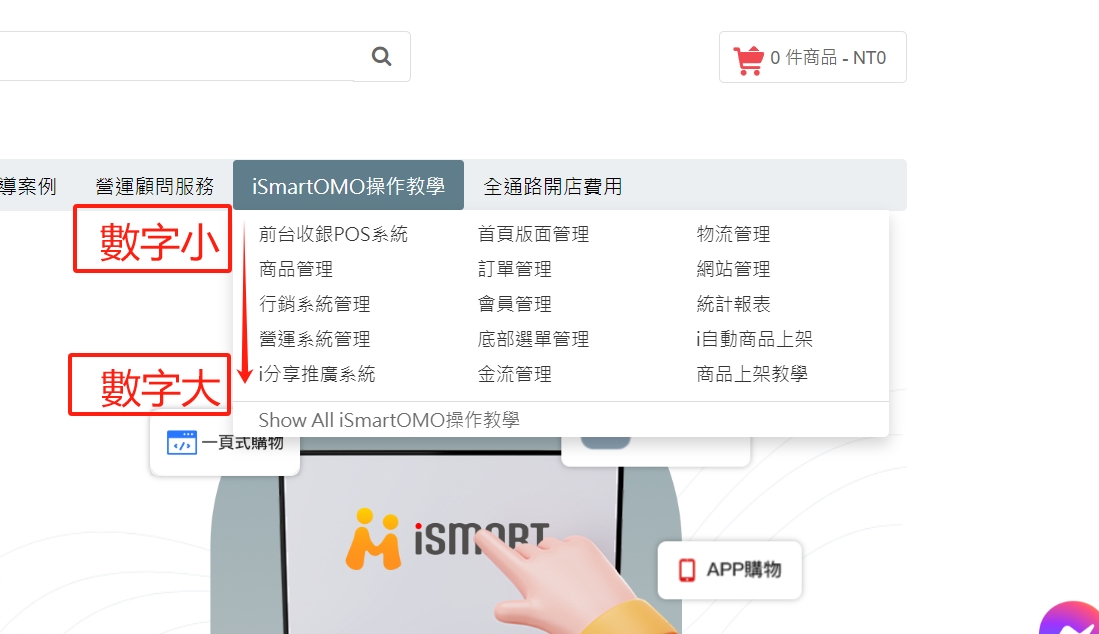
※(4.3). If the created category is "sub-category", the "category level" needs to be filled in which major category you want to arrange it under, enter the sort name, and click on the pop-up item. "Uncheck the navigation bar if it is displayed."
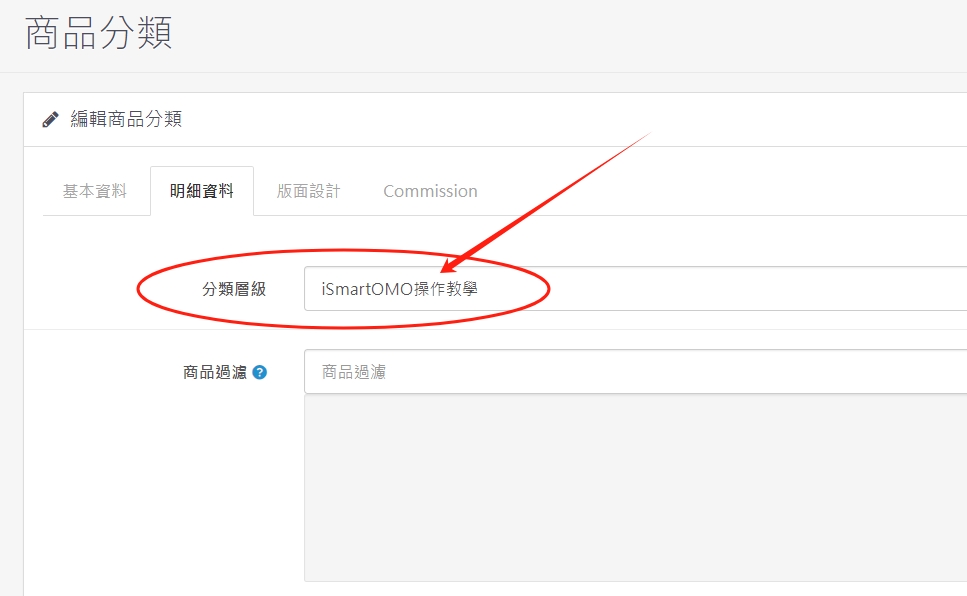
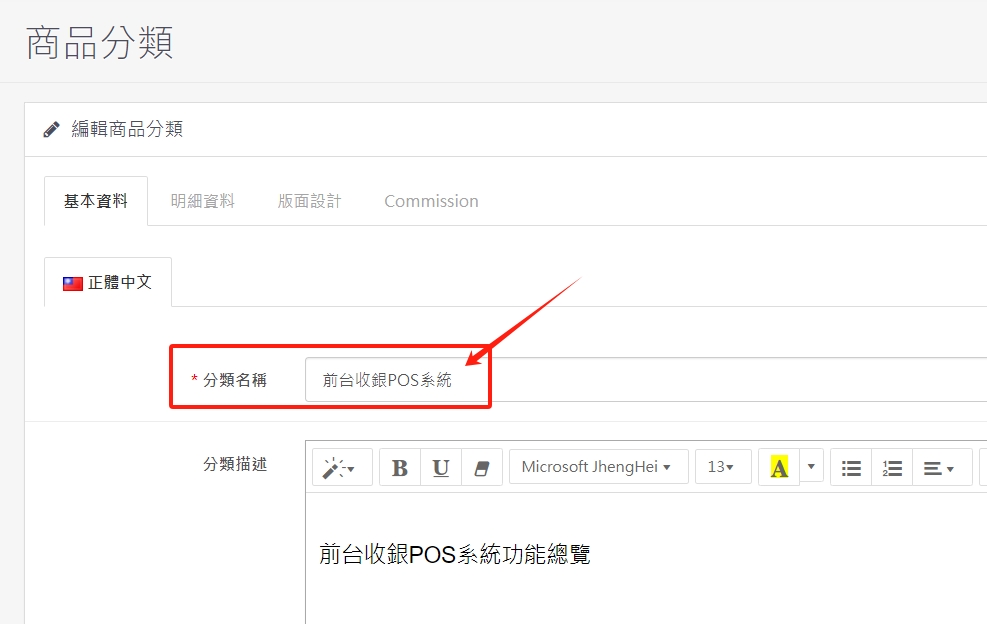
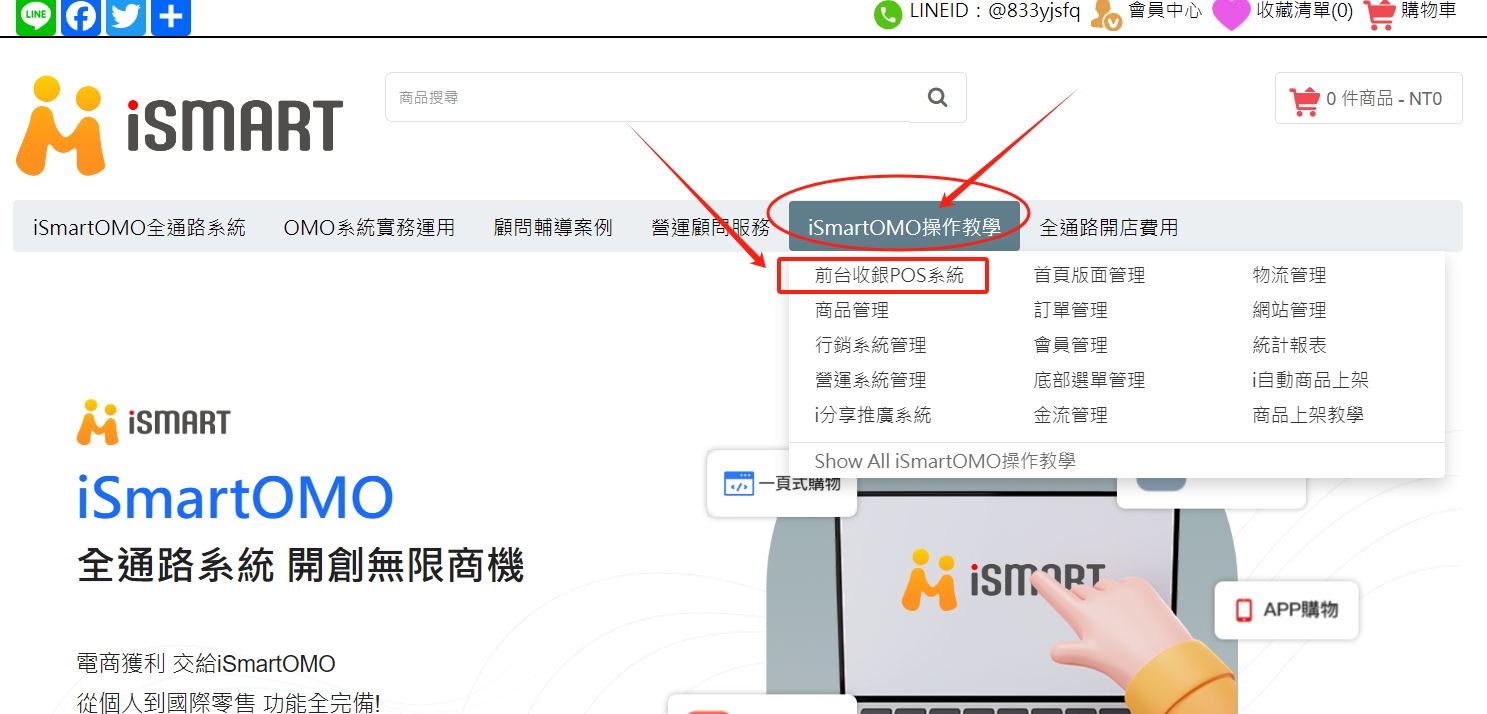
※(4.4). Column display means moving the mouse to the navigation bar (main categories) and displaying one or more rows when jumping out of sub-categories. It is used when there are many categories.

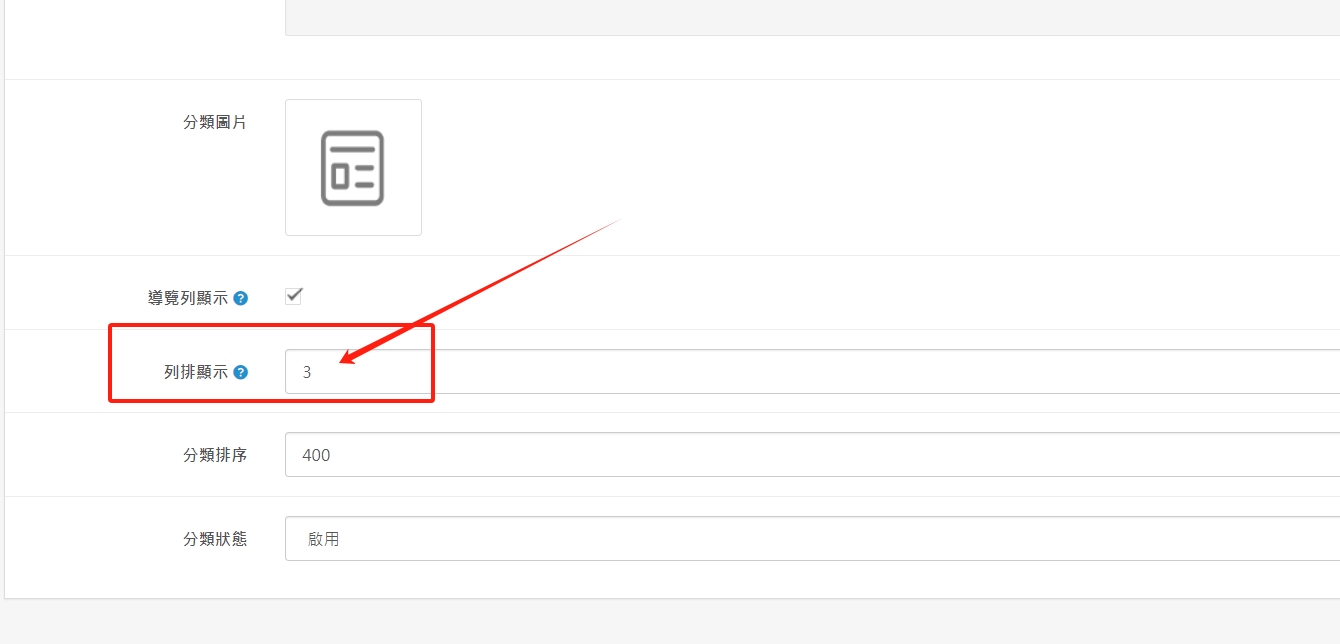
⭕5. Sorting of primary and secondary categories
(5.1), "Category sorting": Small numbers are in the front, large numbers are in the back, and numbers with the same size are sorted according to the setting or new order.

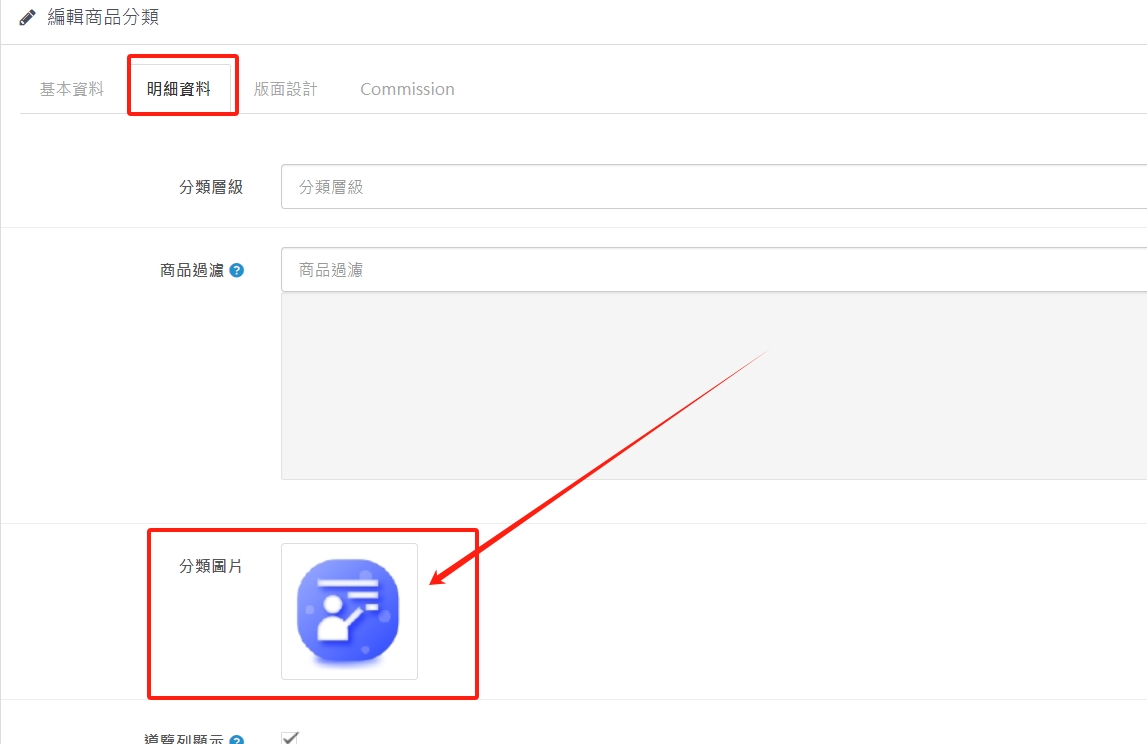
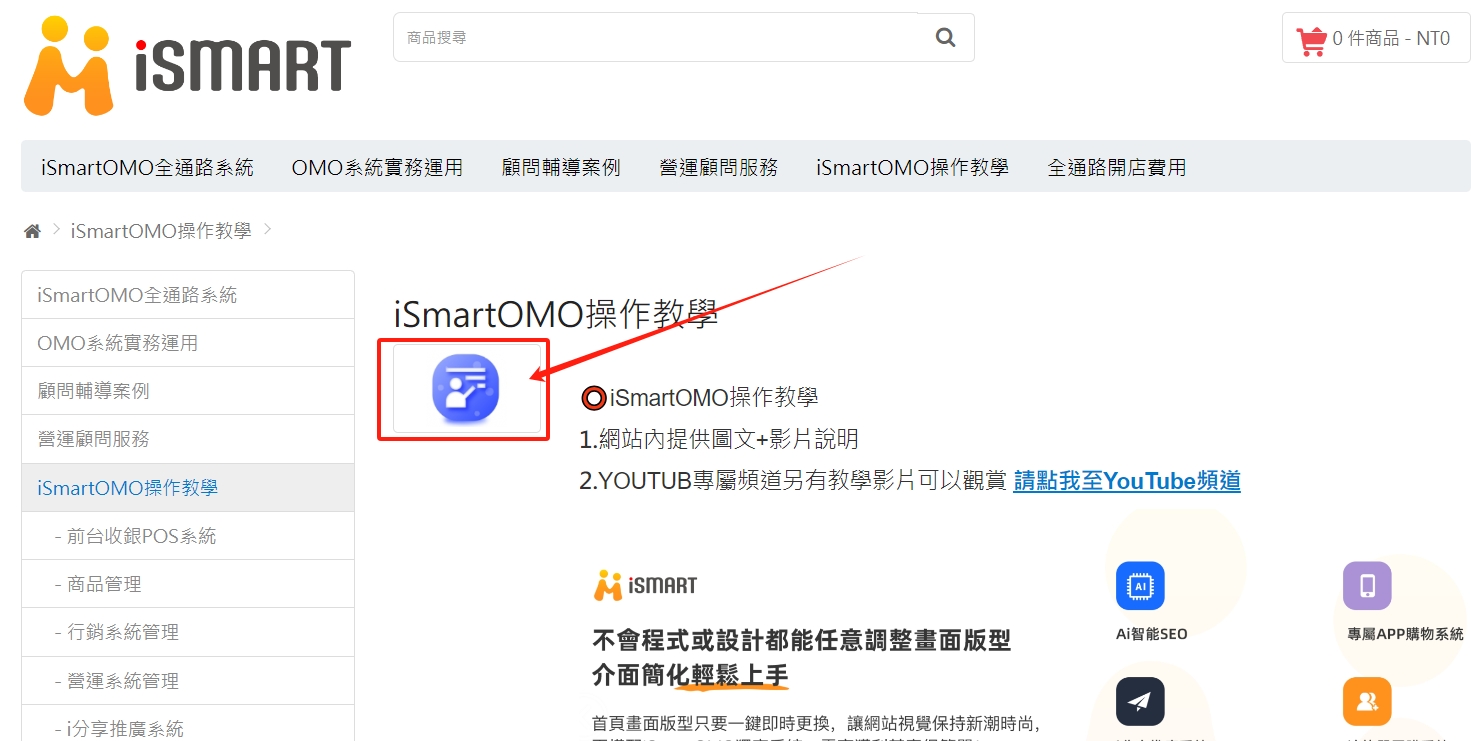
(5.2). After the classified image is uploaded, it will be displayed as a small image at the top of the category page. If the image is not uploaded, it will not be displayed.
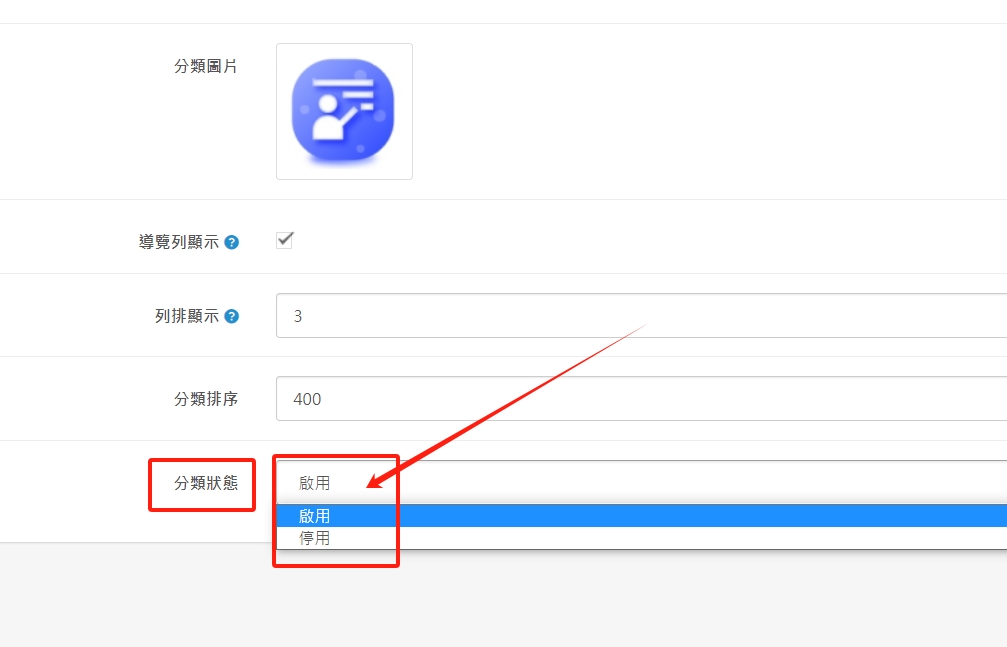
(5.3) Classification status refers to whether the classification can be enabled or disabled at any time to be displayed in the foreground.
There are no products to list in this category.